

Last Updated: November 8, 2026
Quick Summary
Good networking gear for 4K streaming starts with bandwidth planning and wired backbone equipment. Published guidance suggests about 15 to 25 Mbps per 4K stream, so a 200 Mbps connection leaves ample headroom for several streams.
- Plan for about 15 to 25 Mbps per 4K playback stream, plus headroom for other traffic.
- Wired Ethernet is the safer choice for 4K sources that must never stutter.
- Look for NAT throughput, port count and 2.5 GbE or SFP+ ports, not just Wi-Fi speed.
- Enable IGMP snooping and VLANs on managed switches to keep video traffic isolated.
- Run a sustained transfer test during peak use before buying gear.
Table of Contents
- How Much Bandwidth 4K Streaming Actually Needs
- Ethernet Versus Wi-Fi for Sustained 4K Video
- Choosing a Router That Keeps Multiple 4K Streams Smooth
- Wi-Fi Routers for Multiple Devices in a Busy Home or Office
- Ethernet Cabling and Switches for High-Throughput Video
- Testing Whether Your Network Can Handle 4K Streaming
- Put the Right Gear on Your Next Video Network Order
- Frequently Asked Questions
How Much Bandwidth 4K Streaming Actually Needs
At BI-DISTRIBUTION, we start building networking gear for 4K with the bandwidth math, because that is where most 4K problems begin. Published streaming guidance from BroadbandSearch suggests planning for about 15 to 25 Mbps per 4K stream, plus headroom for everything else on the network (BroadbandSearch guidance on internet speed for streaming).
That per-stream figure is only the starting point. Production workflows move far more data. NVIDIA notes that a 4K-Full DPX stream needing 23 Gb/s of real bandwidth requires three 10 Gb/s connections once networking overhead is counted (NVIDIA Networking documentation on high-bandwidth video transport).
Encoded bitrate also varies by platform, codec, frame rate and quality setting. A playback-speed recommendation is not a universal network requirement, so test your own encoder output before you size the network.
Ethernet Versus Wi-Fi for Sustained 4K Video
Wired Ethernet is generally the safer choice for 4K sources that must never stutter. Wi-Fi shares airtime with every other device nearby, so throughput can drop as the room fills up.
Choosing a Router That Keeps Multiple 4K Streams Smooth
A router only needs to carry your internet connection, but it must do so without dropping packets when several 4K streams, video calls, and game downloads share the same WAN link. Browse the full MikroTik router range to compare models for this kind of load. The math is forgiving: three 4K playback streams at roughly 15 to 25 Mbps each consume well under 100 Mbps, so a 200 Mbps or faster connection leaves ample headroom. The failure mode is rarely raw bandwidth, it is the router's NAT throughput, Wi-Fi airtime scheduling, and buffer behavior under concurrent load.
When you compare routers, look past the marketing Wi-Fi number and check three specs:
- WAN-to-LAN throughput with NAT enabled. Many entry-level routers advertise gigabit ports but route far less once firewall and NAT rules are active. A router rated for full gigabit routing will not become the bottleneck when several 4K streams and a large file transfer overlap.
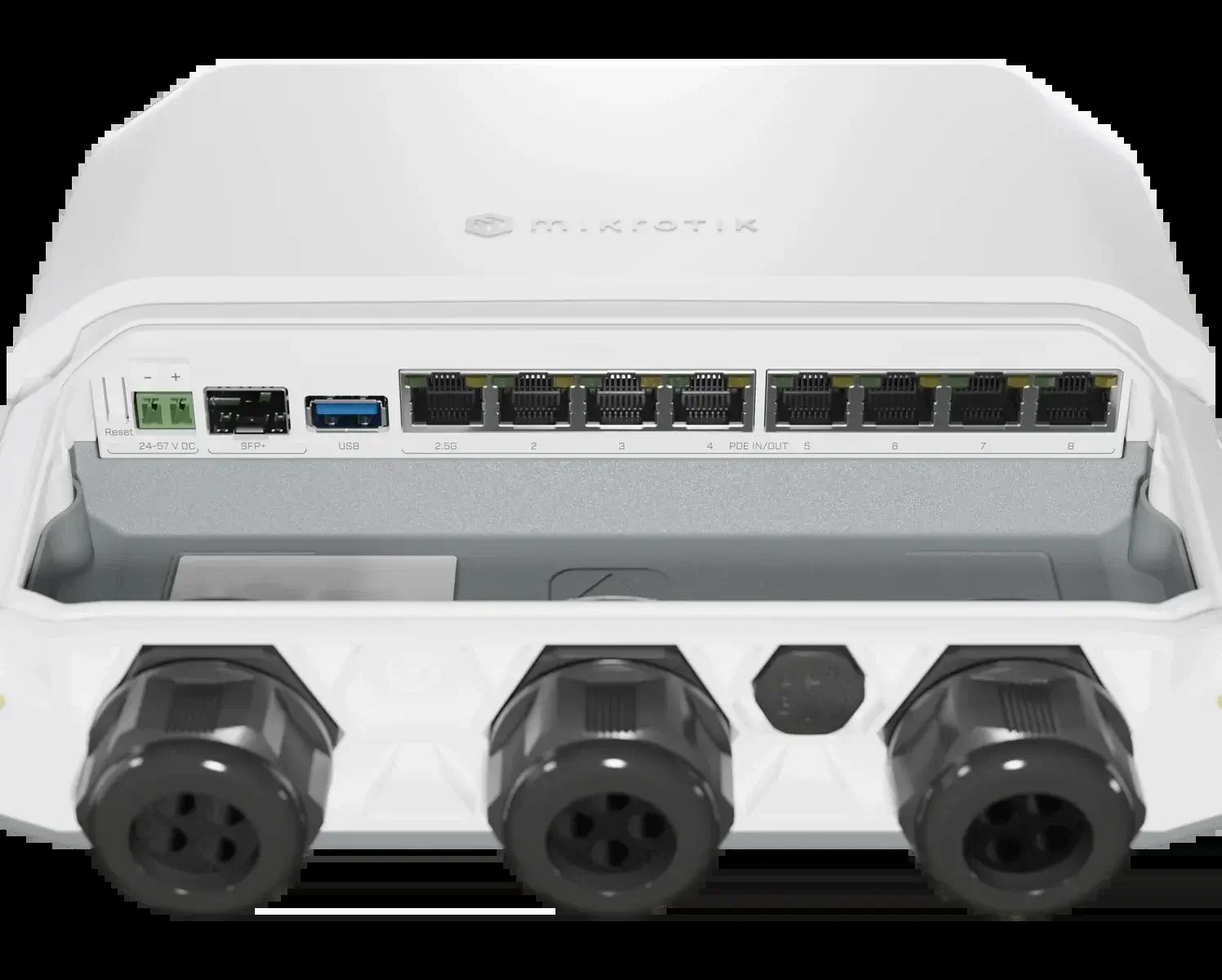
- Port count and link speed. A router with only four LAN ports forces you to add a switch the moment you wire a TV, a media server, a console, and a desktop. Look for at least one 2.5 GbE or SFP+ port if you plan to attach a NAS or a local media server, because local 4K playback traffic can exceed gigabit when multiple clients pull high-bitrate files at once.
- Wi-Fi generation and radio configuration. Wi-Fi 6 (802.11ax) improves scheduling for many simultaneous clients through OFDMA and MU-MIMO, which matters more in a busy home than peak single-client speed. Wi-Fi 7 (802.11be) adds wider channels and multi-link operation, but its real benefit for streaming is reduced latency under contention, not a higher number on the box.
A common pattern in home media setups is to separate routing from wireless. Let a wired router handle NAT, DHCP, and firewall duties, and use dedicated access points for Wi-Fi. This keeps the routing path stable when wireless clients saturate the air, and it lets you upgrade Wi-Fi without replacing the router. Our MikroTik router range and the Ethernet routers category let you compare port counts, routing throughput, and SFP options before you buy. For teams that want to source MikroTik hardware in volume, Mikrotik Wholesale is also worth a look.
For local media playback, a Plex or Jellyfin server streaming 4K remuxes to a TV, the router's WAN performance is irrelevant. What matters is the LAN path: switch fabric, port speed, and whether the server and player sit on the same subnet. A 4K remux can peak above 100 Mbps per stream, so three concurrent local playbacks can push past gigabit. In that case, a router with 2.5 GbE or 10G SFP+ uplinks to the switch keeps local traffic off the WAN entirely.
Watch out: A router's advertised Wi-Fi speed is a combined radio figure, not the throughput any single 4K client will see; sizing a purchase on that number alone often leads to disappointment when several devices stream at once.
Wi-Fi Routers for Multiple Devices in a Busy Home or Office
Busy spaces stress Wi-Fi more than any single stream does. Many devices competing for the same airtime can cause buffering even when the internet connection is fast.
For that situation, the WAP AX access point is built for dense wireless environments, and it pairs well with wired backhaul to the rest of the network.

Ethernet Cabling and Switches for High-Throughput Video
Switches decide whether video traffic gets clean, uncongested paths, and the right choice depends on whether your 4K traffic is internet streaming or local media playback. Internet streaming is bounded by your WAN link, so a gigabit switch is more than enough. Local playback from a NAS or media server is bounded by the LAN, and that is where port speed, switch fabric, and configuration matter.

For most homes and small studios, a 24-port gigabit managed switch such as the CRS326-24G-2S+RM handles the runs, with SFP+ uplinks to storage and camera gear where throughput exceeds gigabit. For larger video networks, the CRS354-48P-4S+2Q+RM offers 48 ports with SFP+ and QSFP+ uplinks, plus PoE for access points and cameras.


Cabling matters as much as the switch. Use Cat6 or better for gigabit runs, Cat6a for 10G runs up to 100 meters, and keep cable lengths within the rated limits. A marginal link causes intermittent dropouts that look like network congestion, so test each run after termination.
Managed Switch Features That Matter for Video
Managed switches let you control how video traffic moves. The features that matter most for 4K streaming are:
- IGMP snooping. Without it, multicast video from IPTV or local multicast sources floods every port, consuming bandwidth on links that do not need the stream. Enable IGMP snooping on every switch in the path and configure a querier so group membership is tracked correctly.
- VLANs. Put media servers, players, and cameras on separate VLANs to isolate broadcast traffic and keep large file transfers from competing with playback. A dedicated media VLAN also makes QoS rules easier to apply consistently.
- QoS and traffic prioritization. Mark video traffic with DSCP or 802.1p priority and configure queues so playback survives congestion. QoS only helps if every switch in the path honors the markings, so apply the same policy end to end.
- Link aggregation. Bond two or more ports between the switch and a NAS or media server to exceed gigabit when multiple 4K clients pull high-bitrate files simultaneously.
A common pattern is to keep the media server and the primary players on the same switch, so local 4K traffic never crosses an uplink that also carries internet and general traffic. This isolates playback from congestion and makes latency predictable.
Watch out: QoS settings only help if every switch in the path is configured to honor them; a single unmanaged switch in the chain resets priority markings and defeats the policy.
Testing Whether Your Network Can Handle 4K Streaming
Measure before you buy. Run a sustained transfer between the source and the playback device, then check for packet loss and latency spikes during peak use.
Test at the time of day when the network is busiest, not at 2 a.m. A link that passes a quiet-hours test can still fail during a live event.
Before buying gear, check how your network performs under real load.
| Check | What to look for | Timing |
|---|---|---|
| Sustained transfer test | Steady throughput between source and player | Run it during peak use |
| Packet loss | Any loss during the transfer | Check during the same test |
| Latency spikes | Sudden jumps during peak use | Compare quiet-hours and busy-hours results |
Put the Right Gear on Your Next Video Network Order
Start with bandwidth per stream, then choose wired backbone gear for any source that cannot drop frames. Add Wi-Fi where viewers need mobility, not where a cable would do.
Frequently Asked Questions
What network speed do you need for 4K streaming?
Plan for roughly 15 to 25 Mbps per 4K stream, according to BroadbandSearch's 2026 guidance, and add headroom for other traffic. Encoded bitrate varies by platform, codec, frame rate and quality, so treat that range as a starting estimate rather than a fixed requirement. Production workflows moving uncompressed or high-bit-depth 4K can need far more: Measure your actual stream bitrate before you size the link.
Is Ethernet better than Wi-Fi for 4K video streaming?
For a fixed workstation, camera or encoder, Ethernet is the more reliable choice because it delivers consistent throughput and lower latency than a wireless link. Wi-Fi 6 offers real improvements in data handling, coverage and speed for 4K streaming, but its performance depends on distance, interference and the number of clients sharing the radio. Use wired backhaul between access points where possible, and reserve wireless for mobile devices that cannot be cabled.
Do I need a managed switch for 4K streaming?
A managed switch becomes worthwhile once several high-bandwidth devices share a network. Features such as VLANs, link aggregation, QoS and IGMP snooping let you isolate video traffic, prioritize streams and stop multicast from flooding ports. A simple unmanaged switch is adequate for a single stream on a lightly loaded network.
How do I test whether my network can handle 4K streaming?
Run a throughput test between the device that sends the stream and the device that receives it, using a tool such as iperf3, then compare the result against your stream bitrate with headroom for simultaneous traffic. Check latency and packet loss under load, not just at idle, because buffering usually appears when several streams compete. Repeat the test at peak hours, since congestion on a shared internet connection can change results from one day to the next.
